
Computers are great. Unfortunately, however, they can also be very frustrating devices, and not because some people are technologically illiterate, while others aren’t. Even experienced users may face problems and difficulties that can make their computers run slower than usual, causing serious inconvenience. The good news is that there are many useful ways to solve the existing issues. Let’s talk about them.
Identifying the Problem: The First Step to Troubleshooting
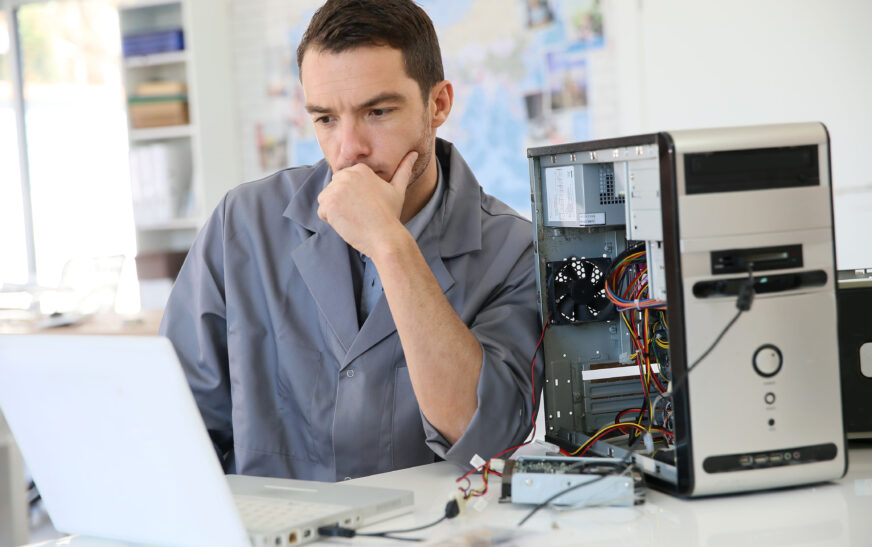
Of course, to fix computer-related issues, you first need to understand their nature and origin. You can’t simply start using various programs and solutions in hopes that one will eventually help – that would take time you don’t have. What you need to do to start troubleshooting the computer problem is identifying it first. For example, you could watch the computer’s performance – does it act weird? You should pay attention to the error messages that appear in the system’s logs; and, finally, make sure you know everything about the problem. When did it start bothering you? What were you doing when the computer began running slower?
Using Diagnostic Tools to Troubleshoot
Another useful technique that may help you troubleshoot your computer problems successfully is using diagnostic tools. They come in numerous types and serve different purposes. Here are some of the most popular ones:
* Event Viewer, which monitors all of the events happening in your system;
* Task Manager that will allow you to monitor the processes working at the moment and understand whether they affect the computer’s performance negatively;
* Disk Cleanup that will help you clean the disks’ surfaces of temporary and other files;
* System File Checker that checks your system files for corruption and repairs them.
Checking for Hardware Issues
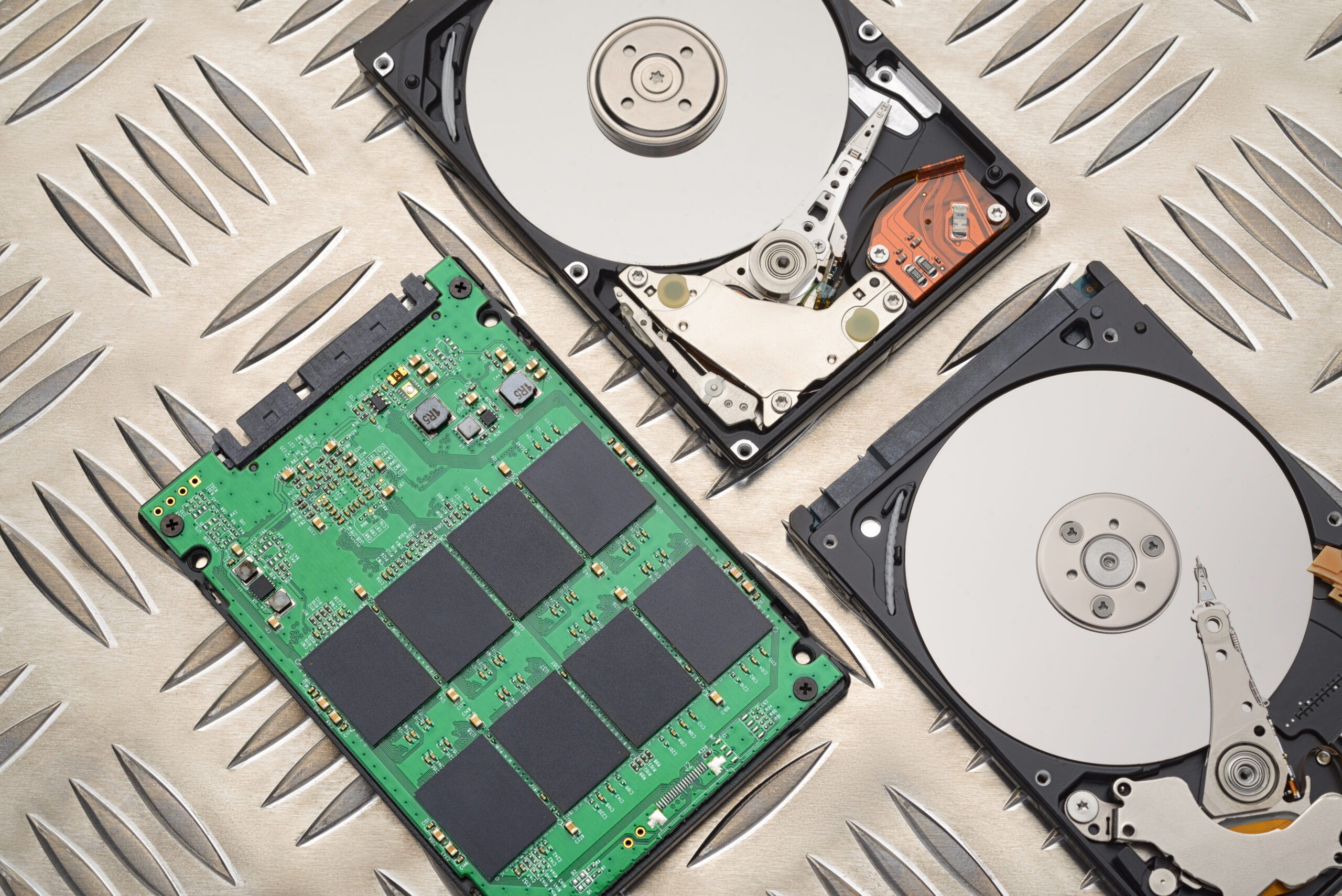
Sometimes the problem might be rooted in the computer’s hardware. Thus, to understand whether your hardware causes computer slowdown, you need to check it for any faults or malfunctions. In order to learn more about the system’s configuration, use the corresponding diagnostic tool. Also, you can check the RAM using the special diagnostics and run the hard drive diagnostics as well.
Updating Software and Drivers
If there is outdated software on your computer, you might experience slowdown. To eliminate this problem, make sure you install updates available for all software products currently running on the machine. Besides, updating the system drivers and OS itself could also help. Windows Update tool will come in handy here.
Using Online Resources and Communities
Many people don’t use them when troubleshooting their PC or notebook. However, that is a mistake: today, numerous websites, communities, and forums offer users useful advice, solutions, and recommendations regarding various computer problems. You can use Google and other search engines to find a tutorial explaining how to fix your computer and get rid of slowdowns. You can also join relevant online communities, such as Reddit.
Creating a Backup and Restoring Your System
If you are going to troubleshoot your computer problems seriously and efficiently, you will definitely need to create a backup. In case something happens, you will be able to roll your system back and avoid losing important data. Windows Backup Tool will help you create the necessary file. Alternatively, you can store your backup files in one of the cloud storages, such as Google Drive or OneDrive.
Using Advanced Troubleshooting Tools
There are more advanced troubleshooting techniques as well. For example, you can use advanced diagnostic tools that are usually used to handle complex cases. The following ones can be recommended in such a situation:
* System File Checker, which will analyze the current state of your system files and make sure there are no problems with them;
* Check Disk tool that finds issues with your hard drives and eliminates them;
* Regedit for editing the Windows Registry.
Conclusion
Overall, as you can see, there are plenty of troubleshooting computer problems techniques to be considered. By applying them correctly, you will have all chances to troubleshoot your computer effectively.