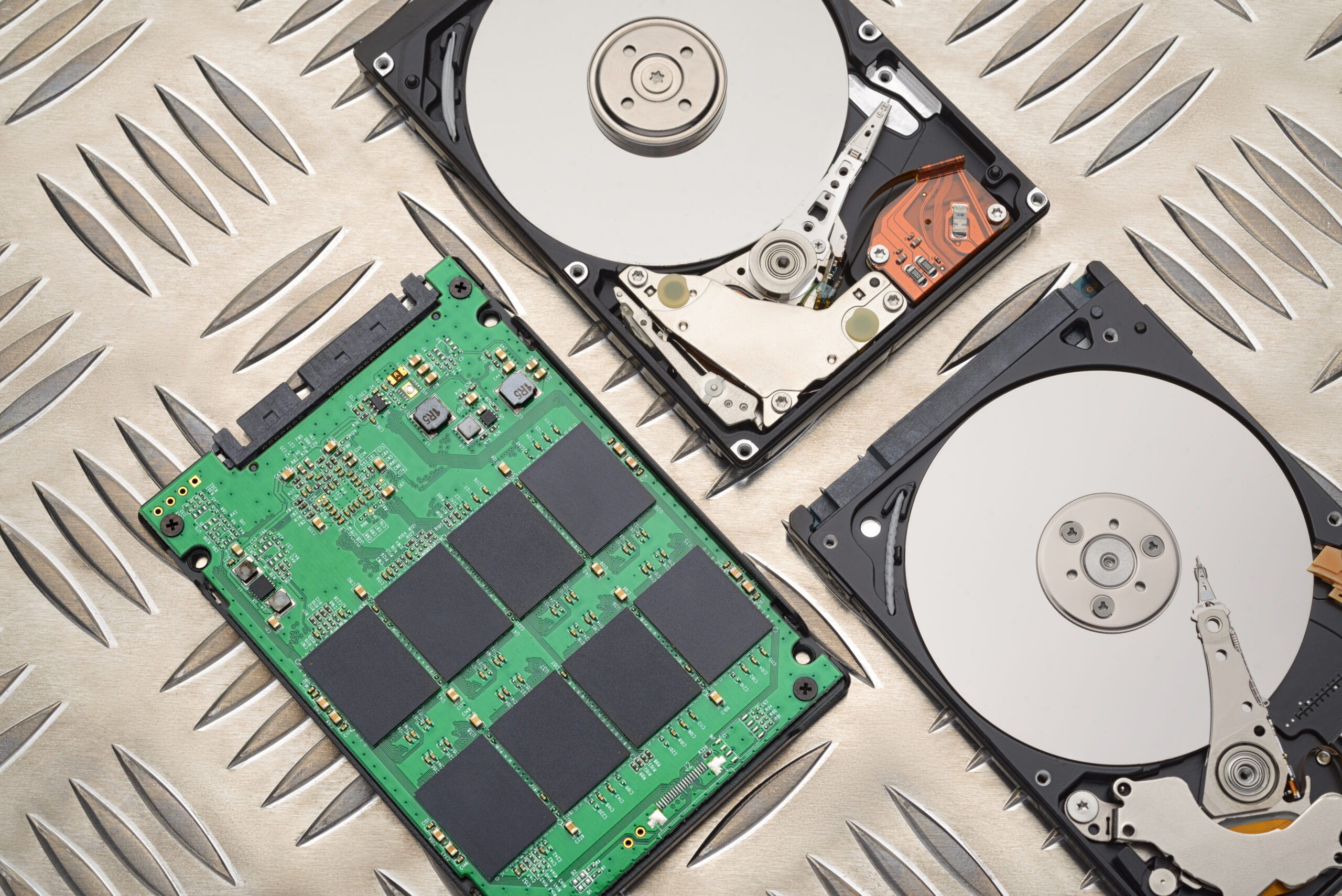


When disposing of an old computer responsibly, one should consider selling or donating their device. This solution reduces waste and allows others to make use of the item. Besides, one might make a little extra cash out of the old hardware. Nevertheless, there is one crucial step that needs to be done before donating or selling the machine – wiping the hard drive.
All kinds of personal data such as images, documents, and passwords are stored on computers. Thus, removing some files is never enough since they might still be accessible to other users. Therefore, it is highly necessary to carry out a full system wipe.
Why Deleting Files Cannot Protect Your Privacy
It is common practice to think that deleting files automatically removes them from the hard drive. In fact, deleting files just makes them unavailable to the system. The data remains accessible until it is overwritten by new data.
The possibility of retrieving deleted files may be very useful when restoring some information. However, it poses certain risks for those who dispose of their devices. For example, another person might easily access your confidential data.
Therefore, wiping the hard drive means overwriting the data and thus making it inaccessible.
Back Up Important Data Before Proceeding with System Wipe
Make sure that all vital information is backed up.
• Upload necessary files to an external hard drive
• Store essential data in cloud storage
It is vital to remember that wiping the hard drive irreversibly deletes all data. Hence, taking a backup of your information becomes inevitable.
Why Is a Complete System Wipe Necessary?
During the wiping process, all the files, applications, and settings stored on the computer will be erased.
Also, the following steps will be carried out:
• Files deletion
• Program removal
• System resetting
• Provision of enhanced privacy
One needs to bear in mind that wiping might take several hours, so the device should be plugged throughout the whole process.
Wiping the Hard Drive on Windows 8.1
When using Windows 8.1, proceed with the following actions:
1. Open the Start menu and select Settings
2. Switch to the Update & security section
3. Navigate to Recovery
4. Click on Remove Everything
5. Select to remove files and clean the drive
6. Push Next, then Reset and proceed with confirmation
In every case, always choose the complete data removal option.
Wiping the Hard Drive on Windows 11
On the contrary, the process of erasing a drive on Windows 11 becomes even simpler:
1. Open Start > Settings > System > Recovery
2. Proceed to Reset this PC
3. Switch to Remove Everything
4. Make sure that data erasure is enabled
5. Follow further prompts
The procedure of wiping the drive is complete.
How to Wipe the Hard Drive on Mac
The wiping process varies depending on the type of Mac computer’s processor and the macOS version.
First of all, find out whether the processor used in the device is of Apple Silicon or Intel type.
• Find the Apple menu
• Click About This Mac
Wiping an Intel-Based Mac Computer (Older Versions of macOS)
When an Intel-based Mac with an older version of macOS is being wiped:
1. Restart your computer and hold down Command + R
2. Open the Disk Utility tool
3. Click on the main drive (Macintosh HD)
4. Hit the Erase tab
5. Choose the suggested format
6. Conclude the erasing process
Then, you are free to install the latest macOS version.
Wiping Apple Silicon-Based Mac
To wipe an Apple Silicon-based Mac, proceed with the following actions:
1. Shut down the device
2. Press and hold the power button until the startup options appear
3. Proceed with the selection of the appropriate option and continue
4. Open Disk Utility
5. Choose your Mac’s main drive
6. Erase the drive
Further instructions will lead you to the procedure of reinstalling macOS.
Erasing an Apple Silicon-Based Mac Using "Erase All Content and Settings" Feature (Newer macOS Versions)
For Macs with the newest versions of macOS, the following procedure is needed:
1. Open System Preferences
2. Click Erase All Content and Settings
3. Type your administrator password
4. Continue with wiping the drive
Afterwards, the Mac will restart, and the installation process starts anew.
Key Points to Consider
Before and during the wiping process, remember about the following:
• Connection to the source of power
• Internet availability (if you plan on activating macOS again)
• Signing out of necessary accounts
All these actions will help to avoid mistakes during the procedure.
Why Wiping the Drive Is So Important
Failure to do so might lead to severe consequences due to the exposure of confidential information. Among such information are the following:
• Videos, photographs
• Banking records
• Personal emails, passwords
• Work documents
A proper erasing procedure guarantees no data leakage.
Conclusion
System wiping plays an indispensable role in preparing a computer for sale or donation. This process is way more complicated than mere deleting of files, which is why people need to take certain steps.