
It usually takes forever for you to switch on your PC and get it loaded. It is rather irritating to wait for your PC to be usable, particularly if you are in a hurry to start working. There are multiple reasons why you should learn to make your PC boot faster and how to implement some basic adjustments. This article will explain to you what PC boot time means and what measures you can take to boost your boot time.
What Is PC Boot Time
Before proceeding to describe ways to speed up your PC boot time, let us consider what this term means. In simple words, boot time denotes the time needed for your PC to load an operating system and launch all software and applications. There are numerous factors that could slow down this procedure; therefore, you need to understand the essence of boot time and its causes.
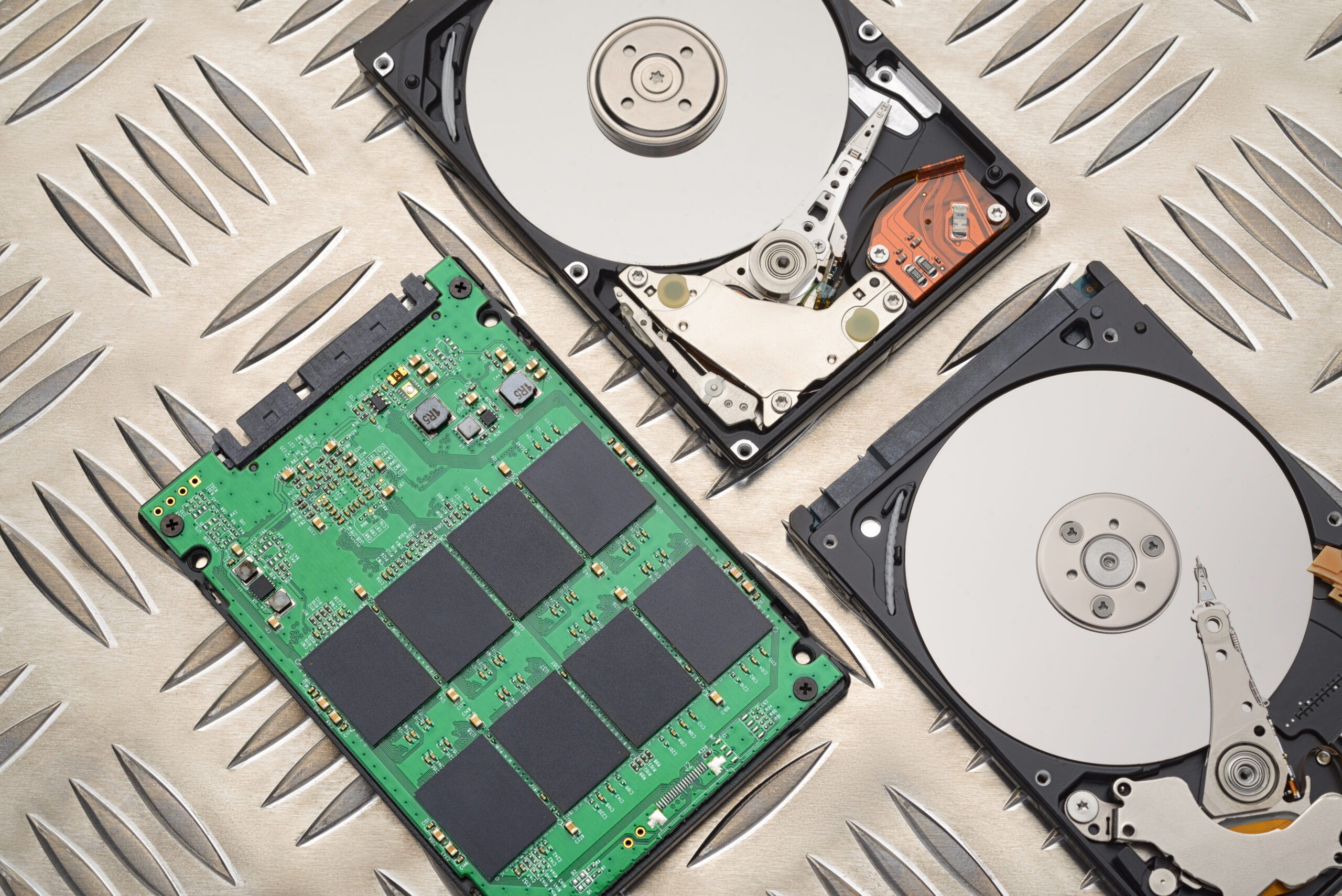
The first possible reason for slow boot time includes excessive startup programs that use up your system resources. Such programs can either be installed by default or added to your PC by the user. In addition to startup programs, there can be other factors that affect your computer’s performance, such as outdated drivers, disk errors, and even malicious software. At the same time, having new hardware is also a great solution for boosting your boot time; especially if it is an SSD, which will allow for faster disk reading and writing.
Boosting PC Boot Time through Optimization
As has been mentioned above, one of the key causes of slow boot time is too many startup programs. If you want to reduce the number of startup programs and speed up your PC’s boot time, here are the steps to follow.
First of all, you need to launch the "System Configuration" utility. To do that, perform the following actions:
Press the keys Windows key + R at the same time
Type "msconfig" and press Enter
Then you should locate a tab named "Startup".
On this tab, you will see a list of programs that are configured to start automatically; thus, you just need to deactivate some of them.
Once all necessary programs have been disabled, restart your PC to make sure that the new settings work properly.
After you have reduced the number of programs running automatically, it would be a good idea to install the latest version of the operating system, as well as all necessary software.
Updating Your Operating System and Software
In order to speed up the loading of your PC, it is essential that your software is updated to the latest version. Indeed, older software or operating system may be slower in terms of performance and efficiency; therefore, make sure that the software you are using is modern and efficient.
In case you want to update your operating system, perform the following actions:
Click the button Start → Settings → Update & Security → Windows Update
Now you need to click on "Check for updates"
In case there are any updates available, install them and then restart your PC.
If you want to update your software, follow these steps:
Launch the program whose version you want to update.
Click the button Help → Check for updates
Follow the instructions and install the updates.
Using a Solid-State Drive (SSD)
Another efficient solution that will help you speed up your boot time is buying and installing a solid-state drive. The fact is that SSDs allow users to boot computers faster because of the absence of mechanical parts. Thus, a computer’s performance will be improved due to increased speed.
Below you will find the steps to take to install a new solid-state drive:
Buy a new drive suitable for your computer.
Backup your files to another place, e.g., external or online storages.
Shut down your computer and unplug the power cable.
Install the SSD and plug it into your PC.
Reboot your computer and adjust it to use the SSD as a primary disk.
Disabling Disk Defragmentation
One more tip for those who want to speed up their boot time is turning off the function of disk defragmentation. Even though it is important for older computers to enable this function, it only slows down new PCs, thus reducing their efficiency. Below you will find the steps to disable disk defragmentation.
Press the combination of buttons Windows key + R
Open the application "Services", which is accessible via the command "services.msc".
Then scroll down the list and find "Disk Defragmentation Service"; once found, double-click it.
Now set the parameter "Start-up type" to "Disabled" and save the changes.
Restart your computer.
Cleaning Up Disk Errors
Sometimes the cause of slow boot time lies in some disk errors that negatively affect computer performance. In order to avoid the problem, you need to fix all disk errors using the "Check Disk" utility. The below-mentioned actions should be taken in this regard.
Press the combination of buttons Windows key + R
Open the "Check Disk" utility by typing "chkdsk"
Perform a disk checking procedure.
Use a PC Cleaning Tool
If you want to optimize the performance of your PC, you can also use various PC cleaning utilities such as Glary Utilities, Avast Cleanup, and others. Using PC cleaners allows users to delete various unnecessary files and registry entries, as well as other system stuff, which can considerably improve the PC’s boot time.
In order to perform a cleaning action, you need to download the PC cleaner of your choice and install it. After that, launch the program and follow all necessary instructions until all unnecessary items have been deleted.
Conclusion
To wrap it up, PC boot time depends on a great number of factors, which are worth considering to boost the computer performance. The above-mentioned tips will help users achieve this goal easily and quickly, thus improving their computing experience.