
Today’s world is a fast-paced digital environment where people need appropriate hardware and software setups to be able to be productive and complete all tasks and assignments in time. Setting up a dual-monitor can be a great way to enhance productivity and increase your overall efficiency. The ability to have multiple windows and apps open simultaneously is the key factor of a good dual-screen setup. Thus, one should follow certain steps to install and configure dual monitors properly.
How to Choose the Right Monitors
The first step in dual-monitor setup involves choosing the right monitors. It is necessary to select monitors according to their screen size, resolution, and compatibility with the computer or device one uses. Modern dual-monitor setups allow using monitors of different dimensions. From tiny 22 inches up to large monitors measuring 32 inches – everyone can choose a model according to his/her preferences and requirements.
If you’re going to use dual monitors while working with graphic design or video editing software, we recommend choosing large displays because you’ll need detailed view of everything that happens on your monitor. In case of writers and data analysts, who don’t require highly precise details, it’s preferable to choose relatively smaller models. Additionally, you should take into account monitor’s connectivity. Today, there are various ways to connect monitors with the help of USB-C, HDMI or other ports.
Connecting Monitors
Once you’ve chosen the right monitors for your purposes, it’s time to proceed to connection of your dual-monitors. Most computers feature the capability to be connected to multiple monitors; hence, users shouldn’t face difficulties connecting devices with a computer. The most popular ways of connection include HDMI and Display Port; though, in some cases, USB-C may be used for this purpose.
In order to install two monitors, it’s sufficient to plug in one end of an HDMI or Display Port into your computer and the other into your monitor. Then, it’s recommended to refer to your monitor’s instruction in case of need. Furthermore, you may want to fix your monitors on special stands which would allow you positioning them properly.
Setting Up a Dual Monitor
When your monitors are plugged in correctly, it’s time to proceed to the next stage of installation. It’s important to know that you can configure dual-monitor setup according to your preferences; hence, you can choose among multiple ways of positioning monitors. For example, many people prefer placing monitors in horizontal way with the primary monitor being located at the left side of the keyboard and mouse and secondary monitor being at the right side.
However, some individuals may prefer placing one monitor above the other or using side-by-side arrangement. Once you figure out which arrangement fits you, you may fix your monitors on special mounts. Besides, you might also consider installing special software which would facilitate dual-monitor setup.
Optimizing a Dual-Monitor Setup
Having installed your dual-monitor configuration, you may proceed to the stage of its optimization. There are different ways to optimize dual-monitor setup according to one’s needs. At first, one should set up display settings properly in order to adjust brightness and contrast level of displays, as well as to calibrate color settings. After that, you can start working with your monitors.
As a rule, individuals position windows of different applications on their primary monitor and open documents or files on their secondary monitors. However, it’s possible to set up your dual monitors even better by means of window snapping and tiling. These features allow arranging your application windows in a convenient way so that your productivity increases.
Working with Your Dual-Monitor Setup
Once you’ve optimized your dual-monitor setup according to your requirements, you can start using it properly. Such a setup will benefit your work greatly because you’ll be able to work with multiple apps and programs simultaneously. This way you will enhance your productivity and complete assigned tasks in time.
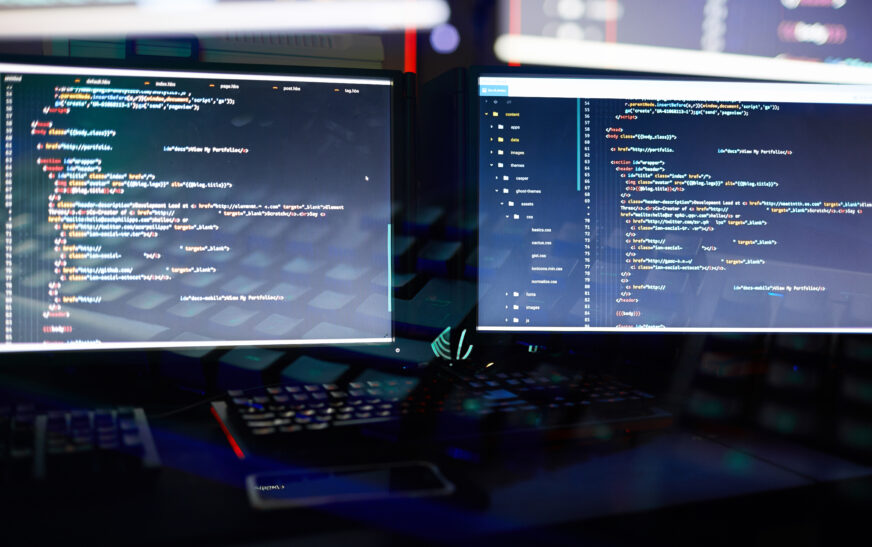
There are many types of activities when using dual monitors is especially useful. Coding is probably the most common among them. However, dual monitor will also help video editors, graphic designers and analysts. We recommend you to experiment with your dual monitor to choose a perfect combination of applications you usually use.
Advanced Dual-Monitor Setup Tips
While basic dual monitor installation tips are helpful, it’s also possible to try to apply advanced tips which will make dual monitor even more efficient. In particular, you may consider using multiple monitors featuring various resolution or orientation. Additionally, there are numerous software products that allow customizing your dual monitors.
For example, you may set different resolutions for your monitors, thus creating so-called multi-resolution system. You may also set custom layout with multiple monitors being arranged in various positions. These and other options are available for Windows and Mac OS users. All that you need is to find appropriate software products.
Conclusion
To sum up, setting up a dual monitor configuration can become a solution that will help you become more productive and accomplish all tasks and objectives within shortest periods of time. You should choose the right monitors for your needs, connect them correctly and configure them properly. In addition, you should try to optimize your dual monitors, using various ways.
Thus, you will be able to install two monitors on your computer or notebook, which will definitely make you more productive. However, if you want to enhance your dual monitors, you may also consider using advanced setup options such as different resolutions, layouts and orientations of your monitors.