
An upgrade of the RAM on your computer could be an efficient way to breathe new life into the system. Nonetheless, it is very important to follow the right procedure because the wrong procedure may result in your hardware getting damaged, thus, invalidating your computer’s warranty. This article describes how to upgrade RAM and the reasons why it is so important.
Selection of Suitable RAM
The first thing you will need to do before RAM upgrade is selecting the right RAM. Note that your options may vary depending on several factors, including the brand and model of your PC, architecture of CPU, and others. Therefore, it would be best to consult the user manual of your PC or, alternatively, the official website where the specs will be available. Once you’ve selected the best RAM to go with your PC, it will be time to focus on its:
Clock speed – this is the indicator of RAM speed when it connects to your CPU. The higher the clock speed, the better.
Capacity – the number shows the RAM’s capacity to store data at once. The bigger the capacity, the better.
Type – there are several types of RAMs, including DDR4, and DDR5. It would be best to opt for one of these.
For example, if your PC requires DDR4 RAM, you should buy RAM with the same clock speed and capacity.
Installation of New RAM Module
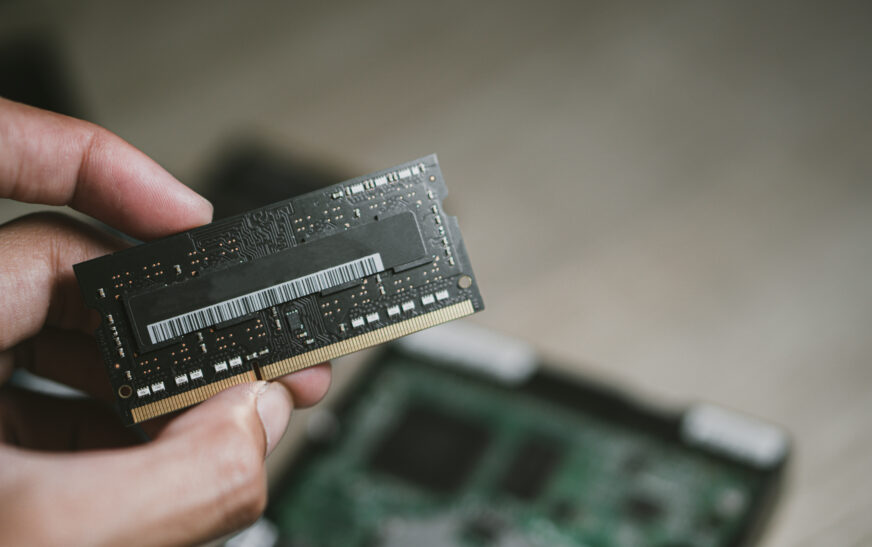
After determining what kind of RAM you want to upgrade your PC to, you will need to install it properly. Firstly, you will need to follow several safety measures, such as grounding yourself, shutting down your computer, unplugging it from the power source, removing all screws and clips, etc.
Then, proceed with locating RAM slots on the motherboard and installing the RAM. Remember that the wrong installation may lead to damaging RAM and motherboard, which is why you should be extremely careful during this process. Next, secure the RAM and reinstall the screws you removed earlier.
Connecting Your PC to Power
After RAM module installation, you will need to connect your PC back to power. As soon as your computer boots up, you will have to configure BIOS settings in order to ensure that your computer will be able to identify the newly installed RAM module.
Adjustment of BIOS
Note that BIOS setting adjustment is absolutely necessary after the installation of the new RAM module because your computer won’t be able to recognize it otherwise. However, you should not touch other settings because it might affect the overall performance of your computer negatively. Therefore, you will need to follow the following steps:
Restart your PC
Go to BIOS setup (press F2, F12, or Del)
Select the appropriate tab in BIOS menu
Configure BIOS based on RAM specs
Verify the changes
Exit BIOS menu
RAM Upgrade Verification
Once your RAM has been upgraded, you will need to ensure that the computer has recognized it. To do so, you may check the list of RAM modules under device manager and make sure that your computer has detected a new module. You can also launch RAM-intense programs to see if the upgrade affected performance. Moreover, you can check the PC specifications.
Resolution of Possible Issues
Rarely, your computer may encounter some issues related to RAM. For example, your PC won’t recognize the newly installed RAM module in which case you will need to check whether it has been installed and fastened properly. Another possible issue includes inability of your computer to start up after RAM upgrade; if that happened, try switching it off and removing RAM. Last but not least, run RAM testing tool; if it shows any errors, it will probably mean that you should remove all programs that may conflict with your computer.
RAM Upgrade for Gaming
Some special considerations should be made if you want to upgrade your RAM specifically to improve the gaming performance. Namely, the following aspects will have to be taken into account:
RAM Type – use either DDR4 or DDR5 as they offer the greatest performance.
Speed – clock speed of 3200 MHz will be enough to boost performance.
Dual-Channel RAM – this type can significantly improve the overall gaming experience.
RAM Upgrade for Multitasking
Some special considerations should also be taken when upgrading your RAM to enhance multitasking capabilities of your PC. These considerations are:
RAM Type – DDR4 and DDR5 should be preferred.
Speed – it shouldn’t be lower than 3200 MHz.
Quad-Channels RAM – it will boost performance significantly.
Conclusion
To conclude, upgrading RAM is rather easy, yet there are various things to consider when doing so.