
Connecting AirPods With a Computer
How do AirPods function?
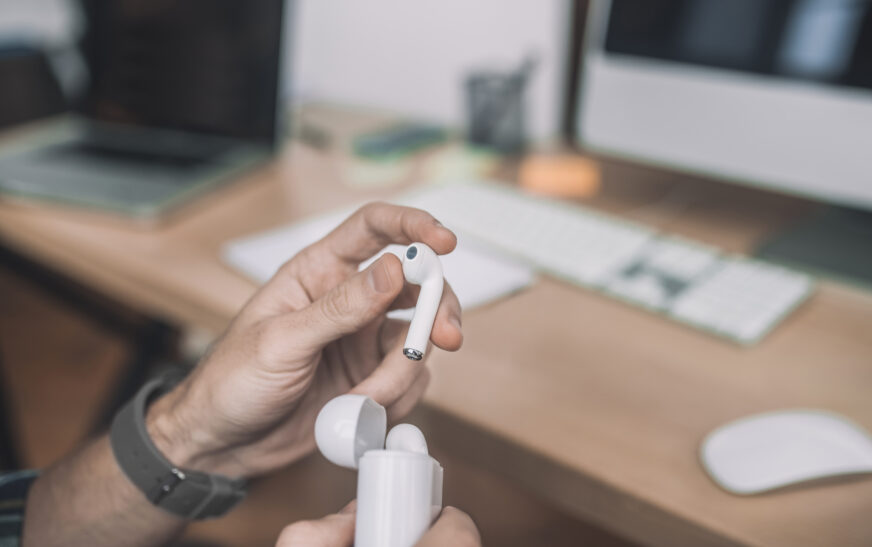
To start with, let us talk about how the whole AirPods operation mechanism works. These earphones are wireless and connect with the computer with the help of Bluetooth technology. Thus, theoretically, AirPods can be used with any computer capable of establishing a Bluetooth connection with external devices. There is one more point worth noting. Namely, Apple devices provide AirPods integration with the operating system which results in such additional options as automatic switching and Siri activation. Nonetheless, using AirPods with any computer provides similar benefits.
Why use AirPods with a computer?
Before proceeding with the tutorial, it is necessary to explain what one can get as a result of the process mentioned above.
A possibility to hear clearer audio during meetings.
No cables to create chaos.
More entertainment while watching videos.
Portability and switching between various devices.
Thus, connecting AirPods with a computer or laptop can enhance your video editing, watching and video calling experience.
Connecting AirPods to a Mac
Automatic connection
Firstly, when trying to connect AirPods with a Mac, it may happen that everything is done automatically as long as you previously connected these headphones to another device which is currently connected to your computer.
Manual connection
However, there might be a situation where your manual intervention is needed.
Go to the Apple Menu.
Choose “System Settings” (in older macOS versions “System Preferences”).
Go to Bluetooth settings.
Make sure Bluetooth is turned on.
Take out your earphones from the case and leave the lid opened.
Press and hold the setup button (located at the back side of the case) until the indicator lights up white.
Select AirPods from the list of available devices.
Click “Connect”.
This procedure will connect your AirPods with the computer quickly and effectively.
Features of AirPods on Mac
The main advantages of connecting AirPods with Mac include:
Automatic device switching
Siri voice commands
Spatial audio technology
Noise cancellation and transparency mode
Using AirPods with a Windows PC
As was mentioned above, the procedure is similar for all types of operating systems but differs a little bit depending on the version of your Windows.
Windows 10
Step-by-step instruction:
Launch start menu.
Choose “Settings”.
Click on “Devices -> Bluetooth & other devices”.
Turn Bluetooth on.
Put AirPods inside the case and open the lid.
Hold the setup button (located at the back side of the case) until the indicator lights up.
Choose “Add Bluetooth device”.
Pick your AirPods from the list.
Windows 11
Step-by-step instruction:
Click on the quick settings tab in the taskbar.
Turn on Bluetooth.
Launch Bluetooth settings.
Click “Add device”.
Choose your AirPods from the list of available devices.
Troubleshooting Connection Problems with Windows 10 and 11
AirPods do not show up in the list of devices in the Bluetooth settings
Make sure that Bluetooth works properly.
Try resetting the headphones by pressing and holding the setup button for five seconds.
Ensure that you keep AirPods close enough to your computer.
Your connection keeps disconnecting
Check whether Bluetooth works correctly and does not interfere with any other wireless network.
Update drivers for AirPods or your computer.
Disconnect all other Bluetooth devices.
Audio is poor
Your earphones are not fully charged.
Double-check audio settings on your computer.
Disconnect and reconnect the device.
Unpairing your AirPods
Should you face difficulties connecting AirPods with your computer, you will probably want to delete a connection record.
For Mac
Launch Bluetooth settings
Find your headphones in the list
Choose “remove” or “disconnect”
For Windows
Go to Bluetooth settings
Choose your earphones from the list
Click “Remove device”
Tips for maintaining a proper connection
The following recommendations will help you to make sure that AirPods work properly with your computer:
Keep your OS up to date.
Use a stable Bluetooth connection.
Avoid wireless interference.
Charge your earphones regularly.
Do not use them far away from a computer.
Conclusion
As you can see, connecting AirPods with a Mac or Windows computer is not a big deal as it requires several easy-to-complete actions. Moreover, these AirPods will be working perfectly fine with other non-Apple devices, although it is obvious that you won’t get all the available functions.
Therefore, finding out how to connect AirPods with a computer correctly is the way to make sure that you make most of the opportunity.