

For a long time, Apple products and Windows PC were two absolutely opposite things. At those times, it was a pain in the neck to pair your Apple device and the Windows PC. Luckily, today everything changed due to the evolution of Bluetooth technologies, and now connecting AirPods to a Windows PC becomes quite an easy task.
Why Should I Use AirPods With a Windows PC?
Though AirPods cannot give you all the advantages if your main device is Windows PC instead of iOS, these headphones still work well in cases of:
• Watching movies or listening to music
• Taking part in video meetings
• Communicating via voice calls
• Playing games
How to Connect AirPods to a Windows PC (Step-by-Step Guide)
You can connect AirPods to your Windows laptop or desktop computer with these instructions:
Step 1: Go to Bluetooth & other devices section in Settings.
First of all, go to the PC settings and then find the Devices tab.
Step 2: Make sure the Bluetooth is On
In the new window, you should look at the top menu and see whether the Bluetooth is enabled.
Step 3: Add a new Bluetooth device
Here, you should click on the “Add Bluetooth or other device” and then select the Bluetooth option.
Step 4: Put AirPods in pairing mode
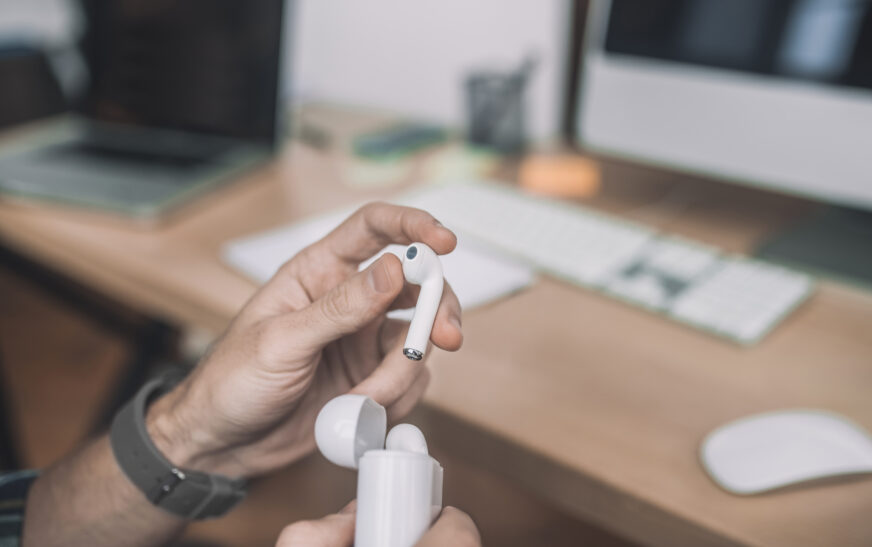
Now it is time to make your AirPods become discoverable by opening its charging case and holding a button in its rear side for several seconds until its LED light starts to flash.
Step 5: Choose your AirPods in the device list
It remains to choose your headphones from the list to connect them.
How to Fix the Problem If AirPods Do Not Appear on the Device List
You can try these quick solutions if your AirPods did not appear on your list:
• Put AirPods into the case and open it again
• Repeat pressing and holding a button until the light flashes
• Make sure your Bluetooth is on
• Try to move your AirPods closer to your Windows computer
Afterwards, you will surely find your devices on the list.
AirPods Work on Windows PC: What to Expect after the Process of Pairing
After completing a process of AirPods pairing, you can expect to hear music and listen to any voice communication using your device. Besides, AirPods become paired automatically each time it is located near the Windows computer and Bluetooth is active.
Moreover, you can set them as default audio and microphone devices.
Main Features Limitations While Using AirPods with a Windows PC
There are some differences while connecting your Apple headphones to a Windows PC. So, here is what you won’t be able to do:
• Invoke Siri on them
• Automatically switch to another AirPods while listening to music
• Control audio settings properly
Tips for Making AirPods Pairing Easier and More Effective
You can achieve better results of AirPods work on your Windows PC by following these tips:
• Take care of AirPods charging level
• Update your Bluetooth drivers from time to time
• Maintain no interference of your AirPods with any Wi-Fi signals
• Do not let your AirPods move far away from the computer