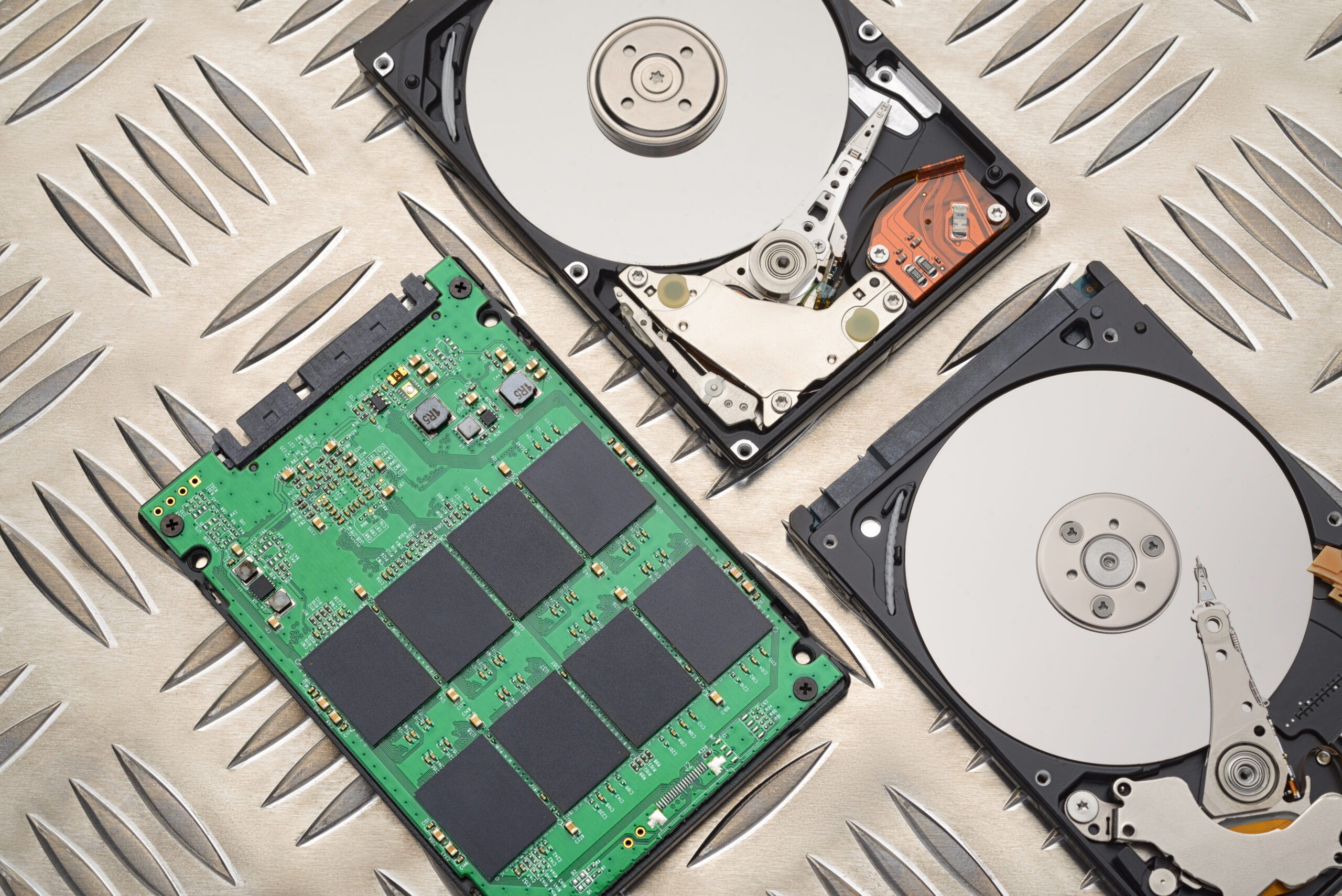


The latest version of the Windows operating system, i.e., Windows 11, was released back in June of 2021. However, even after nearly two years since its release, many people have reported experiencing performance problems with their computers. While having a computer that is too slow can be extremely frustrating, especially when you need to get things done quickly or play your favorite games, the good news is that there are some effective ways to speed up Windows 11 and boost its performance. Below you will find the top methods that you can use to make your Windows 11 operating system run faster.
Understanding Windows 11 Performance Issues
There are a number of reasons why you might be experiencing performance problems on your Windows 11 computer. Some of the common issues include out-of-date drivers, system crashes caused by a lack of disk space, malware infections, and inefficient settings in the system. To be able to fix performance issues with Windows 11, you need to figure out the root cause first and solve it. For instance, cleaning up your hard drive will allow you to save disk space and reduce the frequency of system crashes.
Cleaning Up Disk Space
Having too much junk data saved on your hard drive will result in reduced performance of Windows 11. To fix this issue, you should clean up your disk space in order to ensure your Windows 11 runs properly and no system crashes occur because of it. Here are the steps to help you free up some disk space:
Click the Start menu, then type Disk Cleanup, and press the Enter key. Select the drive you want to clean, and then click OK. Wait for the process to finish and view the results. Choose which files you’d like to delete and then click the OK button to confirm your choice.
Another way to clean up disk space is by using the Storage Sense feature. Here are the steps to follow:
Open the Settings app by pressing the Windows key + I and navigating to Settings > System > Storage > Change how we free up space automatically. Click the option to enable this feature, allowing your computer to free up space automatically.
Updating Drivers
Drivers can often cause various performance issues with Windows 11. To improve the performance of your computer, you can try updating your outdated drivers. Here are the steps to help you update drivers on your computer:
Press the Windows key + X at once to launch the Start menu. Next, click Device manager and expand the list. Look for any devices that are marked with a yellow exclamation mark. Click to expand them and then choose the Update driver option to update these devices.
Alternatively, you can use the Driver Update tool that helps identify outdated drivers and then updates them automatically.
Optimizing System Settings
If you want to improve Windows 11 performance, you can try modifying the system settings. To optimize system settings, you will need to perform these actions:
Press the Windows key + I simultaneously to open the Settings app. Then go to Settings > System > Performance. Go to the Power & sleep tab and click it. Make sure that High performance is selected. Then click the Storage tab, and select the Quick startup option to optimize system settings.
Another way to optimize system settings would be to use the Performance Monitor tool, which will allow you to see your computer performance metrics and fix them. Here are the steps that you need to follow:
Open Task Manager by pressing the Windows key + X and selecting the Task Manager app from the list. There click Performance tab and check the metrics there. Use Performance Monitor tool for better optimization.
Disabling Startup Programs
Startup programs can slow down Windows 11 performance and cause your computer to freeze more frequently than before. To stop such applications from slowing down your computer’s start-up processes, here is what you should do:
Launch Task Manager by pressing the Windows key + X simultaneously, and then clicking Task manager from the list. Then go to the Startup tab. Find the programs that you don’t use and disable them.
Alternatively, you can use the Autoruns tool to disable startup programs.
Running Disk Cleanup and Disk Defragmentation
Disk cleanup and defragmentation are the ways to improve Windows 11 performance as well. You can do it in just a few simple steps. To do so, click Start, then type Disk Cleanup and click the Enter key. Select the drive that you want to clean, and click OK. Afterward, pick the files you wish to delete and click the OK button to finish.
Defragmenting your hard disk will also significantly help boost Windows 11 performance, and you can do so in just a few simple steps. To run this utility, click Start menu, type Disk Defragmenter and click the Enter key. Select the drive you want to defrag and then click OK.
Enabling System Restore
The System Restore is another feature that will help increase Windows 11 performance by providing you with the possibility of reverting the system’s state to its earlier state. In order to enable this function, follow these instructions:
Open the Control Panel window by pressing Windows key + X at once and clicking Control Panel. Navigate to System and Security, and click System. Then scroll down the menu to find the System Protection button and click it. Finally, choose the drive that you’d like to use System Restore on.
Using the System File Checker Tool
System File Checker tool checks all the system files on your computer for possible errors and automatically fixes those errors for improved performance of your computer. Here is how you can run this utility:
Press the Windows key + X at once and click Command Prompt (Admin). Type the following command: sfc /scannow and then press the Enter key.
Running the Malwarebytes Antivirus Tool
You can use the Malwarebytes tool to improve Windows 11 performance by identifying all kinds of malware infections and removing them. To scan your computer and eliminate malware infections, follow these steps:
Download and install Malwarebytes on your computer and launch it. Then click Scan. Pick the malware you’d like to remove and then click Remove.
Using the Windows Update Tool
One of the most important things when you try to increase Windows 11 performance is to always keep your computer updated with all the new versions available. This is the only way to ensure that you have the latest features of the software. Here is how you can update Windows 11 using the Windows Update utility:
Click the Start button and click Settings. Navigate to Settings > Update & Security > Windows Update. Click Check for updates and select the updates you would like to apply.