
That laptop you bought a few years ago is no longer as fast as before and you can choose to upgrade. However, this can be quite costly in terms of money and the environment. It would be more efficient and environmentally friendly if you simply upgraded your existing laptop. This is done through making some changes that can extend its lifespan. Here are eight tips that you can employ to make your laptop run faster without buying a new one.
Tip One: Add Extra RAM
This refers to memory space. RAM is the primary memory used by your laptop. The more RAM that your computer has, the more applications can run simultaneously without slowing down your computer. If your computer does not have sufficient RAM, it may perform poorly. You can add some extra RAM from your laptop provider or another trustworthy provider. Make sure that the new RAM is compatible with the motherboard of your computer. All you need to do after is switch off your computer, open the bottom part, insert the extra RAM, place the cover back on and power on your computer.
Tip Two: Optimize Your Hard Drive
Your hard drive fills up with garbage as time progresses. This makes your computer slower. Fortunately, you can easily optimize your hard drive and increase its speed by deleting all the files that are unnecessary. You can use your computer’s disk cleanup utility to clean all the temporary files stored in the computer. Moreover, you can use the defragmentation utility on your disk drive to increase its speed. To optimize your hard drive, go to the Disk Cleanup utility, choose the file you want to delete and press “OK”.
Tip Three: Update Your Operating System
You should always make sure that your operating system is up-to-date for optimal computer performance. An operating system is responsible for facilitating operations between the hardware and software. When you update your operating system, you get the latest software updates, security patches, and bug fixes. To check your computer’s operating system and determine whether it needs updating, go to settings and check the “Update & Security” tab or “Software Update”. Click on “Check for Updates.”
Tip Four: Disable Unnecessary Startup Programs
Many programs that come pre-installed in your computer launch themselves as soon as you turn your laptop on. These programs consume your processing resources making it slower. For instance, some antivirus programs launch immediately upon booting and monitor the entire system in the background. To prevent this, you can make sure that only those programs launch when you turn on your computer. Simply press Windows key+R to open the Run dialog box and type “msconfig”. Once the configuration window appears, select the “Startup” tab. Uncheck any program that you do not want launched immediately upon starting your computer.
Tip Five: Install a Solid-State Drive (SSD)
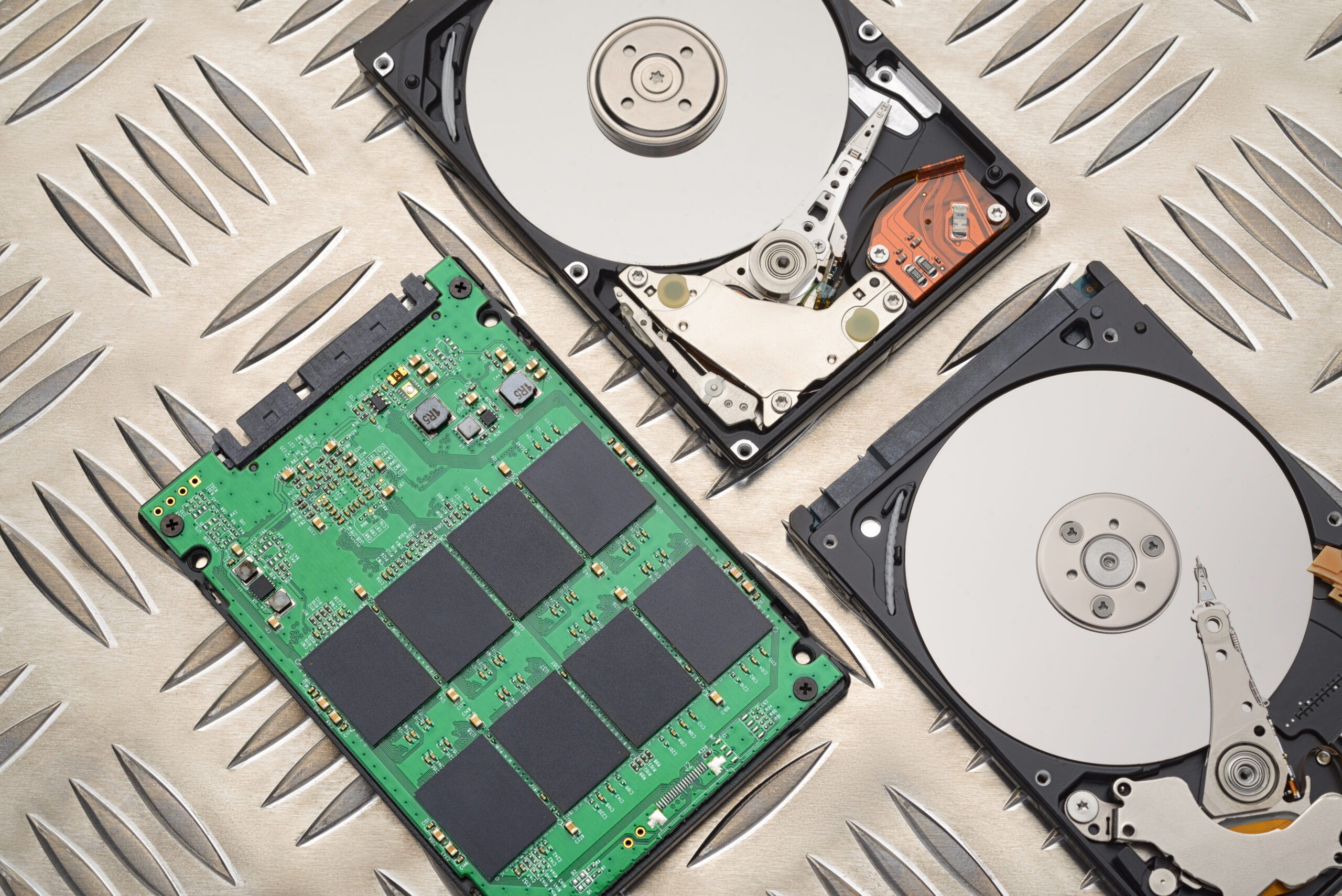
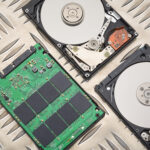
A hard drive is a standard feature in most computers. However, hard drives are slower than solid-state drives which use flash memory to store information. Switching to an SSD can improve your laptop’s performance up to 50%. This involves getting rid of your old drive and installing a new one with cloned files. This is a rather tricky process and you should only do this if you know how to perform this operation. Otherwise, get expert help.
Tip Six: Disable Animations and Visual Effects
As someone who uses your laptop to perform editing tasks and plays games, you probably love the quality of visual effects and animations offered by your computer. However, as a general user, such features are unnecessary and slow down your laptop. To disable animations effects on your computer, you simply have to open the “Performance Settings” window, go to the “Advanced” tab, click “Settings” and choose “Visual Effects” and “Animations”. Uncheck them both.
Tip Seven: Use a Faster Web Browser
Some browsers like Google Chrome and Firefox are optimized to offer great speed. You can speed up your computer performance greatly by using these web browsers. You can simply visit the website and download, install, and use them.
Tip Eight: Use a Laptop Maintenance Tool
Such utilities are just like disk cleanup tools except they offer additional services including optimizing your hard drive, cleaning your temporary files, updating your operating system, among others. Some examples of laptop maintenance tools include CCleaner and Glary Utilities. You can download and install any such software on your computer.
Conclusion
In summary, there are many ways to speed up your laptop without upgrading. These methods include adding extra RAM, optimizing your hard drive, updating your operating system, removing unnecessary programs, installing an SSD, disabling animation and visual effects, using a faster web browser, using a laptop maintenance tool, and using a battery saver.